

If you've ever asked Microsoft 365 Copilot Chat to create a spreadsheet, or Word document - and it has done so but not quite given you the finished result you need, this is for you.
Microsoft 365 Copilot Chat can be enhanced with specialised capabilities such as Research a topic, Analyse data, Build a workbook, Write a document and Design a presentation and Generate an image. These capabilities allow Copilot to move beyond simple chat responses and generate fully structured outputs that are ready to use.
In this article we'll look at what Copilot capabilities are, when to use them, and how they can dramatically improve the quality of your results.
Adding 'capabilities' to your Copilot prompt
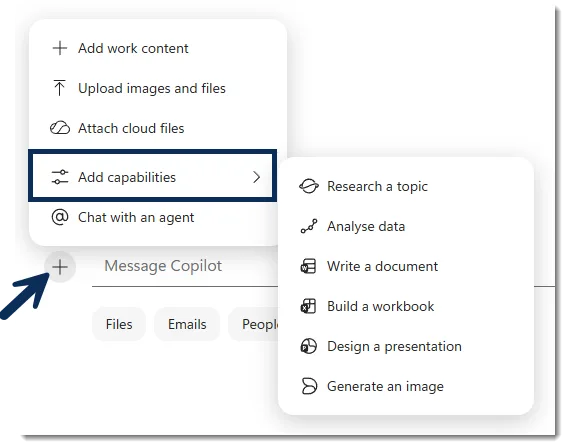
We've had the option to engage an Office agent to help complete a prompt using the 'Tools' button in the prompt box for a while. But it has definitely seen some massive improvements recently (like most things in Microsoft 365 Copilot!).
Engaging the Microsoft Office agents (or the Research agent, Analyst agent or Create module) is giving a much better result than using M365 Coplot chat alone. You do this (in the with the New Design toggled on) by clicking the + and Add capabilities.
These capabilities act like specialised AI agents within Microsoft 365 Copilot chat. Instead of generating a simple text response, they use dedicated logic designed for specific tasks such as research, document creation, spreadsheet generation and data analysis etc.
Microsoft 365 Copilot Example: standard chat only vs adding Build a Workbook capability
Here's an example of the impact it has on your results... the prompt used in both cases was “Create a spreadsheet showing 12 months of raw materials purchased by a Coffee Supplies Wholesaler” (note: this is just sample data - and did not referencing any actual real information).
1. Without capability: standard M365 Copilot chat only
This output includes:
- Monthly totals for raw materials such as beans, milk powder, sugar, and packaging items
- No transactional detail, supplier context, or cost calculations, no additional worksheets
While still useful, this version requires additional work before it can be used for deeper analysis.

2. With capability: Excel agent enabled (Build a workbook)
This output includes:
- Detailed transaction-level data, including transaction IDs, dates, suppliers, and categories
- Calculated values such as unit cost and total cost
- A structured dataset covering multiple types of purchases, including coffee beans, packaging, equipment, and supplies - including multiple worksheets (and graphs)
The result is a dataset that is immediately usable for reporting, analysis, or operational decision-making.

When to Use Capabilities
For simple brainstorming, drafting, or quick answers, standard M365 Copilot Chat remains effective. Using capabilities allows you to:
- Produce higher quality outputs from the outset
- Reduce the amount of manual rework required
- Generate content that is aligned to real business use cases
- Accelerate tasks that would otherwise take multiple steps
In tools such as Excel, this often means the difference between receiving a simple table and receiving a fully structured dataset with calculations and logic already applied.
Adding capabilities helps it move beyond responses and deliver complete, usable outputs that can be put to work straight away. It's especially great when you didn't know that's what you were going to want when you started the chat (if you did, you might have started the chat within Excel, Word, Research etc in the first place) ...because you can add capabilities after you've already been chatting with Copilot for a few turns.
| Capability | Best for |
|---|---|
| Research a topic | Investigating a subject across files, emails and web sources |
| Analyse data | Understanding trends and patterns in datasets |
| Build a workbook | Creating structured Excel files with formulas and charts |
| Write a document | Drafting reports, policies and proposals |
| Design a presentation | Creating PowerPoint decks from topics or documents |
| Generate an image | Creating visual assets and illustrations |
Real-world examples
- Creating a project status report from meeting notes
- Building a budget workbook for the next financial year
- Preparing a presentation for a leadership meeting
- Researching a new client before a workshop
- Creating a risk register from project documentation
Like with most things Copilot.... you just have to try it!
Things to keep in mind
- Capabilities still depend on good prompts
- Generated content should always be reviewed before sharing (as always)
- Outputs may vary depending on licensing and availability
- Not every capability is available in every Microsoft 365 environment
- Copilot may still need additional instructions to match your preferred format
If you don't see the Add capabilities option
You need to already have the Agents available to you - the M365 Office agents and the Create (previously called Designer) module do not require a paid add-on Copilot licence but Researcher and Analyst do.
If they're not there, you'll need Add the agents (of course this will be subject to your organisation having allowed them too) - click More agents, find the one you want and Add:

After that, you'll see them in the Agents list and also have them to select in the prompt box. Note that it might look a bit different if you are not yet seeing the New Design (updated Copilot chat design):

In-person events like Digital Workplace Day – Tauranga have loads of real examples, live walkthroughs, and the kind of detail that helps you connect the dots properly - not just understand what the tools can do, but how they work in practice. Join us on 17 September 2026 for a full day of learning and demonstrations: so much value for $325+GST.