

Wondering whether you should use Planner, a Team Calendar, both - or something else? Here's a practical guide to choosing the right tool for assigning work, tracking progress, and keeping your team informed.
I often get asked something like this by clients:
"I need to give people work to do in Teams and make sure they get reminded about it. What's the best way to do that?"
Usually, the confusion comes from the fact that Microsoft 365 gives us several tools that sound like they should solve the same problem:
- Microsoft Teams
- Microsoft Planner
- Loop / Meeting Notes
- Team Calendars
- Outlook
The reality is that they're designed for different purposes. If you've been trying to work out how to assign tasks in Teams, track deadlines, or manage a project calendar, here's what I usually recommend.
The Short Answer
If you're trying to decide quickly:
| Requirement | Best Tool |
|---|---|
| Assign work to specific people | Planner |
| Track task progress | Planner |
| Automatic task notifications | Planner |
| Team-wide visibility of important dates | Team Calendar |
| Project milestones and events | Team Calendar |
| Collaborative meeting actions and working lists | Loop |
| Real-time co-authoring of plans, checklists and notes | Loop |
| Capture actions during meetings and keep them visible across Teams, Outlook and Loop | Loop |
The easiest way to think about it is:
- Calendars tell people when something is happening.
- Tasks tell people who is responsible for making it happen, and track progress
- Loop helps teams work together on the information and actions that sit between the two.

Option 1: Use Planner When Work Needs Tracking
If your goal is to:
- Assign work to individuals
- Set due dates
- Track progress
- Follow up on completion
- Help people stay on top of deadlines
then Microsoft Planner is usually the best place to start.
Planner is Microsoft's lightweight task management tool and can be added directly into a Team as a tab (or see all your Plans in the Planner app). Team members can see and update tasks, and assigned users receive notifications about work allocated to them.
Why Planner Works Well
Unlike a calendar event, a Planner task has ownership.
You can see:
- Who is responsible
- When it's due
- Whether it's started
- Whether it's completed
- Comments on progress
- Related inputs or outputs linked in
This makes Planner particularly useful for operational teams, projects, administration work and recurring business processes.
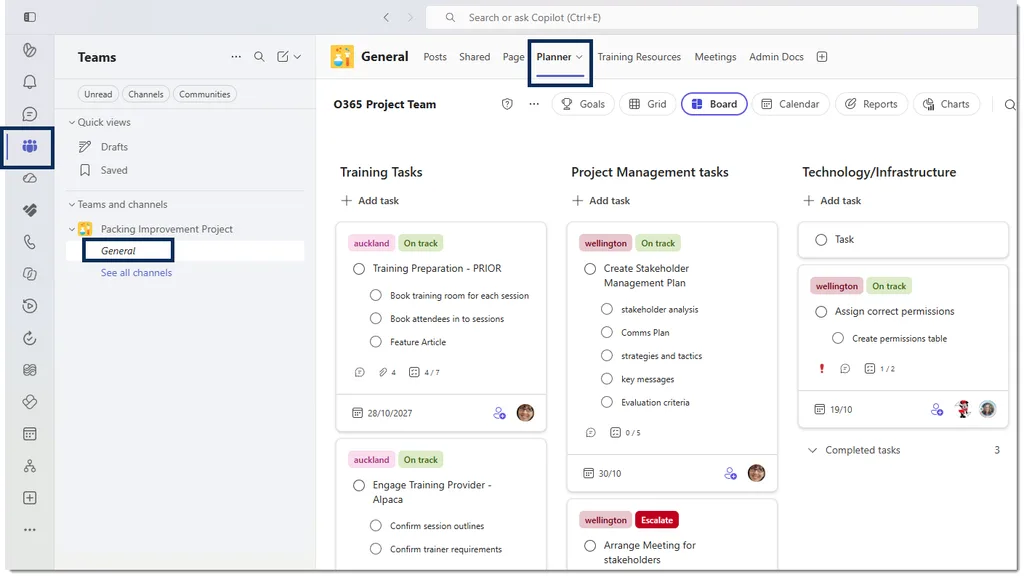
Plan as a tab in Teams channel (Board View)
Tip
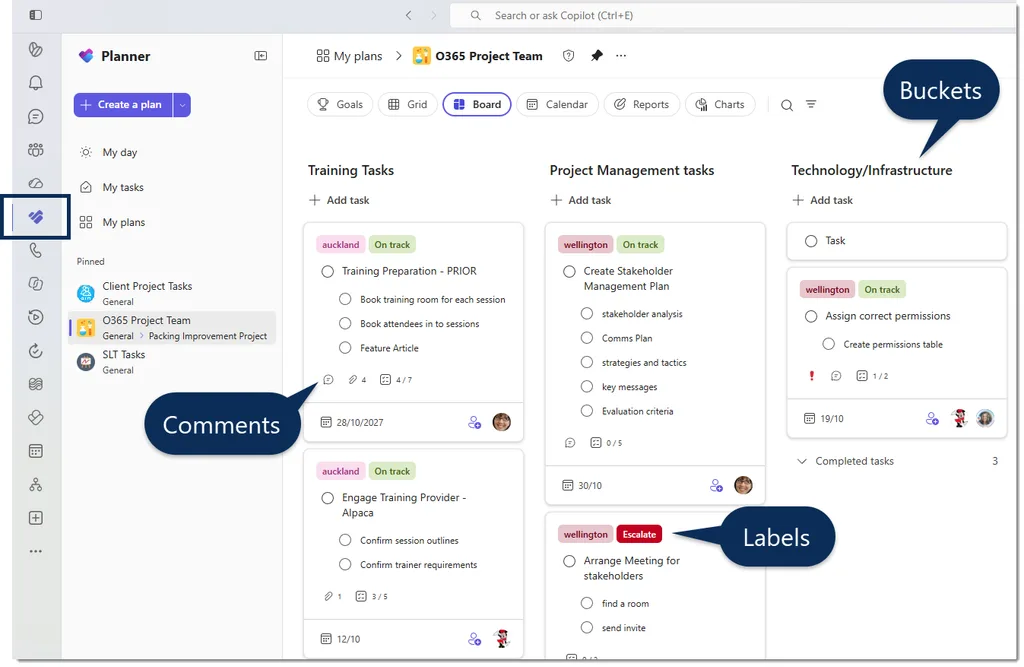
Invest a little time working out how best to use Buckets, Labels, and Comments for your plan and make sure everyone knows the rules around this.
Planner app in Teams (Board View)
Gotcha
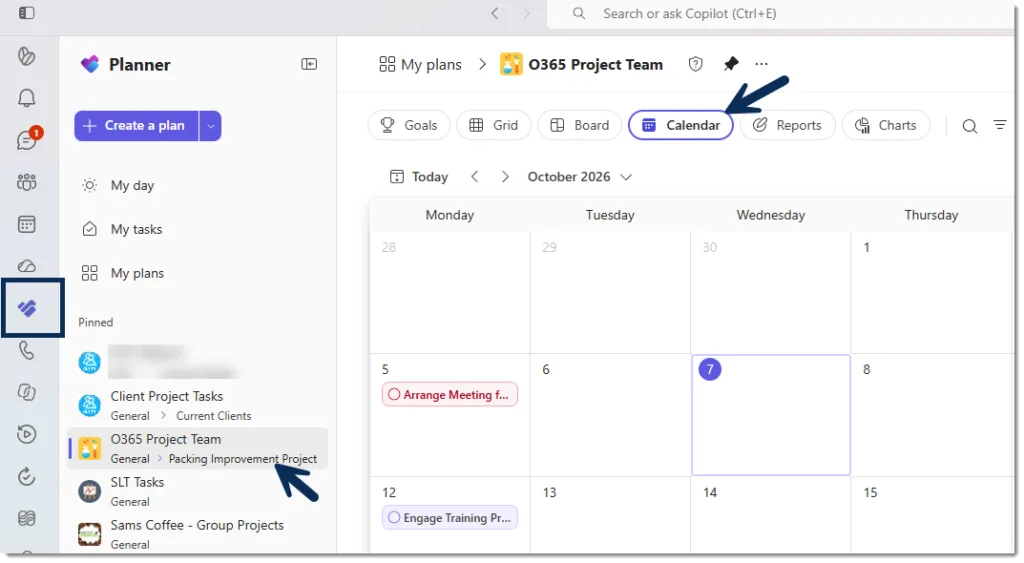
Many users assume Planner's Calendar View is connected to Outlook. It isn't. It's a different view of the same tasks, not a shared Outlook calendar. Planner's calendar view is useful for visualising due dates, but it isn't connected to Outlook meetings or calendar appointments.
Planner Calendar View

Option 2: Use Loop for Collaborative Planning and Meeting Actions
Sometimes you don't need a formal project plan yet, but you still need people working together on tasks, ideas, decisions or action items. That's where Microsoft Loop can be useful.
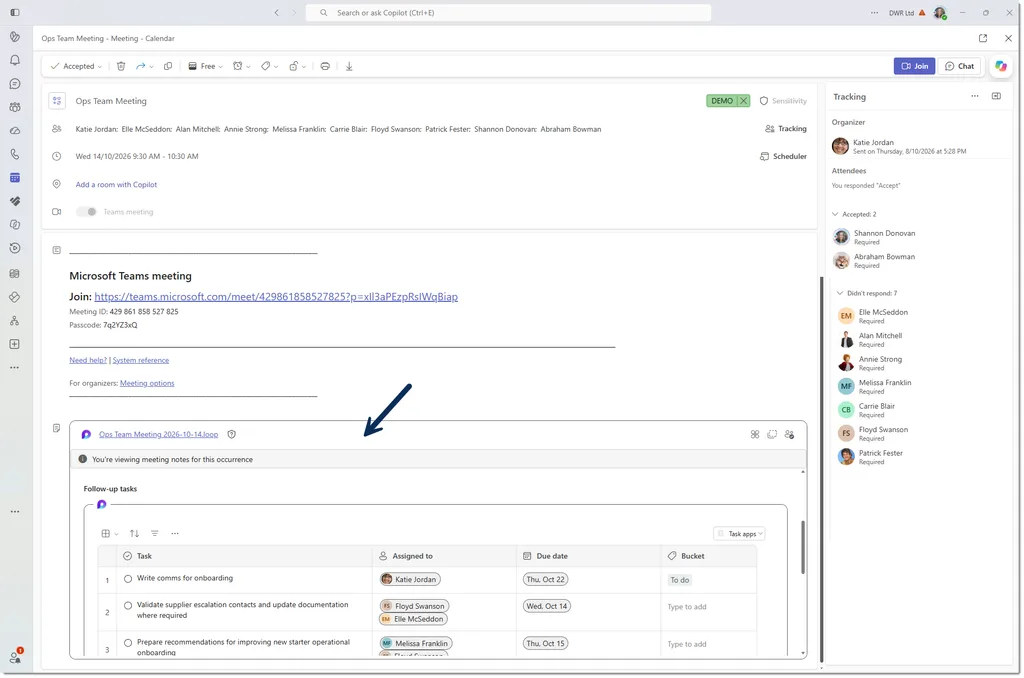
Loop is designed for collaborative content that stays up to date wherever it's shared. A Loop task list can appear inside a Teams chat, meeting notes, Outlook email or a Loop workspace, with everyone seeing the same version.
Examples include:
- Meeting action lists
- Workshop outputs
- Issue registers
- Project planning checklists
- Brainstorming and idea capture
Loop task list in Meeting Notes
Why Loop Works Well
Unlike a calendar, Loop allows people to actively contribute to and update shared content.
Unlike Planner, Loop is less structured and better suited to situations where work is still being discussed, refined or collaboratively developed.
Tip
Use Loop for lightweight task lists, meeting actions and collaborative planning.
Use Planner when work needs stronger tracking, reporting, automation or project management features.
Gotcha
Loop is excellent for collaborative planning, meeting actions and simple task tracking. However, as work grows, teams often need features such as dashboards, reporting, buckets, dependencies, automation and richer task management. That's usually the point where Planner becomes a better fit.

Option 3: Use a Team Calendar for Shared Visibility
Sometimes you don't need task management at all. You simply need everyone to know what dates things are happening.
Examples might include:
- Project milestones
- Site visits
- Training sessions
- Team leave schedules
- Audit dates
- Monthly reporting deadlines
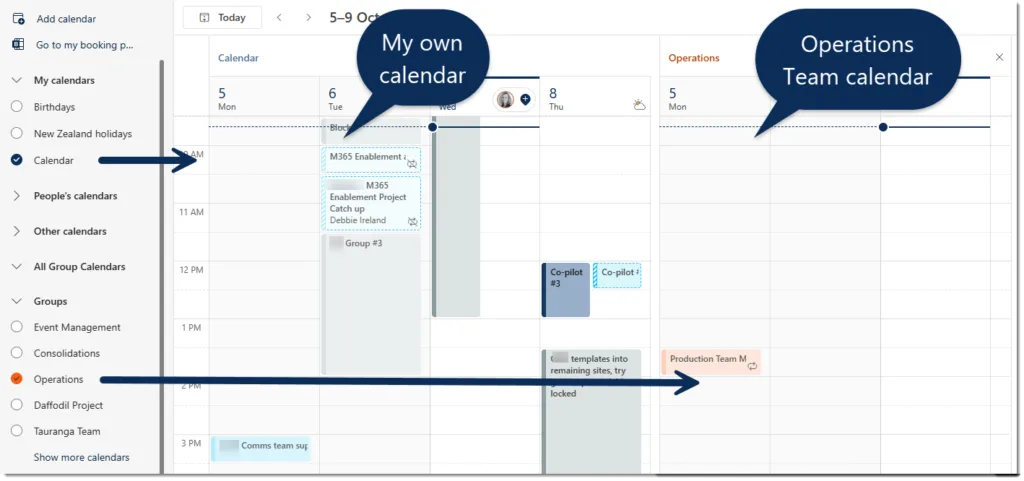
In those situations, a shared Team Calendar may be the better approach. Teams are backed by a Microsoft 365 Group and have a shared Group Calendar which can be accessed through Outlook. This can be really useful if your Team lives and breathes in Outlook - and if they need to be able to copy events into their own individual Outlook calendars.
Show Group Calendar (Outlook or Teams)
Tip
Look under the Groups section in Outlook Calendar - you can view it inside the Calendar within the Teams app too. Many users don't realise their Team calendars are already sitting there waiting to be used.
Gotcha
A calendar event is not a task. It can tell everyone a deadline exists, but it won't:
- Assign responsibility
- Track completion
- Show progress
- Escalate overdue work
If accountability matters, you'll probably want Planner instead.
Another common misconception is that Team calendar events automatically become part of everyone's personal calendar. They remain part of the shared Group Calendar and need to be viewed as such. Also - they're not easily surfaced inside of a channel.
Option 4: Use Planner and the Team Calendar Together
Sometimes you don't need task management at all. You simply need everyone to know what dates things are happening.
Examples might include:
- Project milestones
- Site visits
- Training sessions
- Team leave schedules
- Audit dates
- Monthly reporting deadlines
In those situations, a shared Team Calendar may be the better approach. Teams are backed by a Microsoft 365 Group and have a shared Group Calendar which can be accessed through Outlook. This can be really useful if your Team lives and breathes in Outlook - and if they need to be able to copy events into their own individual Outlook calendars.
For many teams, this is actually the sweet spot.
Use Planner for:
- Tasks
- Follow-ups
- Assigned work
- Action items
Use the Team Calendar for:
- Milestones
- Meetings
- Key project dates
- Events everyone should know about
Think about building a simple project rhythm:
| Work element | Tool |
|---|---|
| Team kickoff meeting | Calendar |
| Assign project actions | Planner |
| Monthly milestone review | Calendar |
| Follow-up work | Planner |
| Final delivery date | Calendar |
This gives everyone visibility while still making it clear who owns each piece of work.
What About Managing Everything Inside Teams?
This is where expectations and reality don't always line up. A lot of users expect Teams to provide a complete project dashboard containing:
- Tasks
- Calendars
- Meetings
- Notifications
- Project timelines
..all in one place. But Microsoft 365 tools still have different strengths.
In my experience:
- Planner remains the best option for assigned work.
- Outlook remains the easiest place to manage shared Team calendars.
- Teams brings those experiences together but doesn't completely replace either one.
Which Option Should You Choose?
If you're still unsure, ask yourself one simple question: am I trying to make people aware of something, or am I trying to make someone responsible for it?
- If the answer is awareness, use a Team Calendar.
- If the answer is responsibility, use Planner.
- If the answer is both, you could use both (or just Planner if you only want one).
- If the answer is live collaboration across multiple entry points, use Loop.
Frequently Asked Questions
Can I assign tasks directly in Microsoft Teams?
Yes. Planner can be added as a tab within a Team, allowing you to create, assign and track tasks without leaving Teams.
Should I use Loop or Planner?
Loop is ideal for collaborative notes, planning and action lists where multiple people are contributing. Planner is better when tasks need clear ownership, due dates, progress tracking and accountability.
What's the difference between Planner and a Team Calendar?
Planner is designed for task management and ownership. Team Calendars are designed for scheduling and visibility and are connected to Outlook.
Do Planner tasks appear on Outlook calendars?
No, Planner tasks are not connected to Outlook. Planner has its own calendar view based on task due dates.
Should I use Planner or Microsoft To Do?
Planner is generally better for shared team work. Microsoft To Do is better for personal task management (think about We vs Me in terms of visibility / assignment / tracking).